01 / The starting point
What is actually connected
to my computer?
It sounds like a simple question. Add a dock, a display, a few adapters and a handful of USB cables, and it gets surprisingly difficult to answer. When something stops working, you end up unplugging things and hoping the next combination helps.
I built Porty to make that setup easier to understand. The project became a lesson in how operating systems expose devices and cables—and how to turn those fragments into an interface that helps someone debug a real problem.
- My role
- Product design + development
- Platform
- macOS + Windows
- Status
- Public preview
02 / Learning the hardware model
A physical connection doesn’t arrive as one tidy record.
The first job was understanding the information underneath the interface. A device can expose several functions. A hub can appear through multiple USB branches. Data, display and power information can come from different places. Those records need to be understood before they can become a useful picture of someone’s desk.
That changed the design problem. A long list of detected entries makes the user do the reconciliation. Porty brings those entries together where there is evidence to do so, and keeps the uncertainty visible when there isn’t.
Physical setup
The socket, cable, dock and device someone can see on their desk.
Reported evidence
The identities, relationships and current readings the operating system exposes.
Useful explanation
A connection you can follow, with the source and limits of its information attached.
03 / Making relationships visible
Give the user a path to follow.
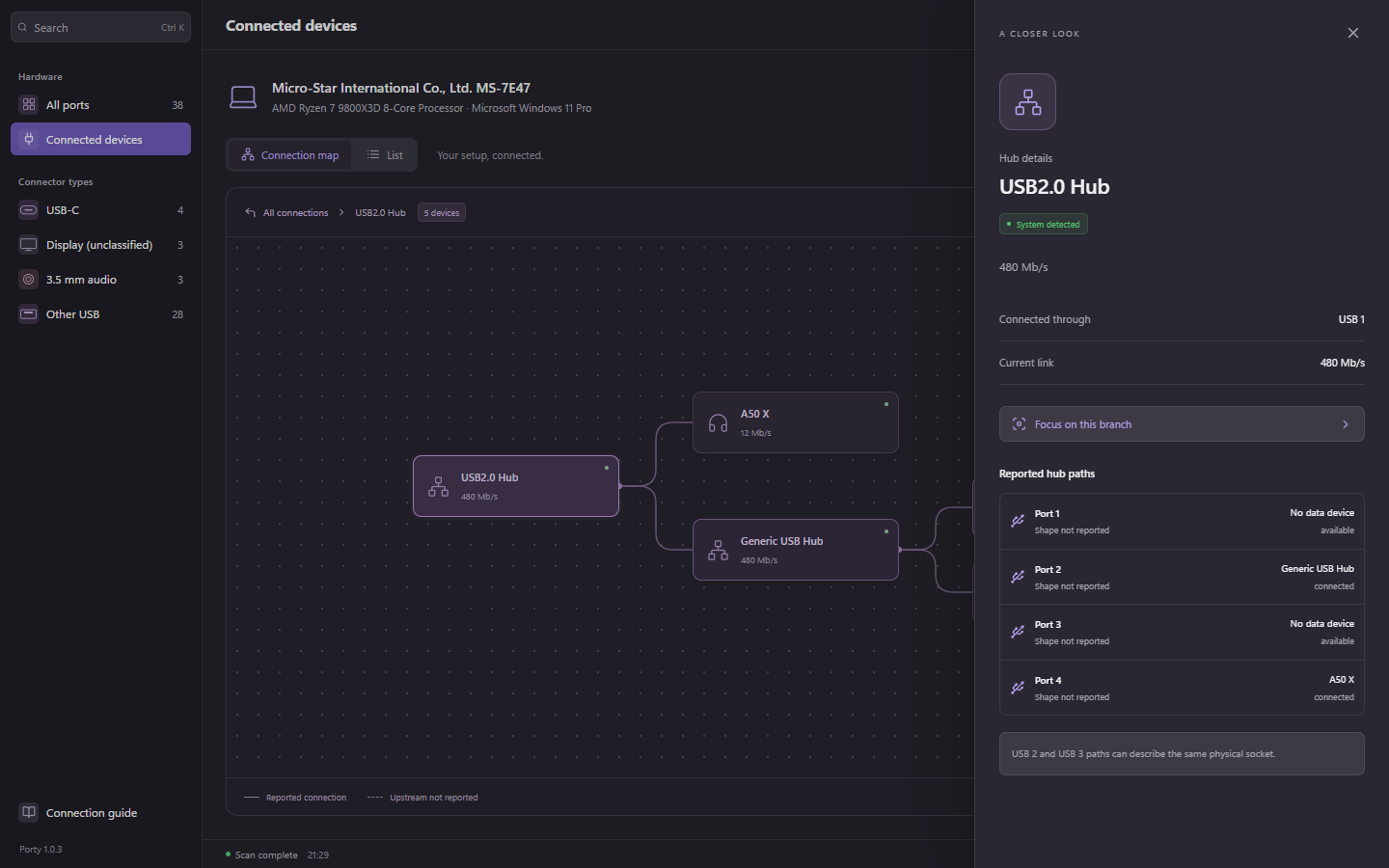
“Webcam connected” is useful. Seeing which hub it belongs to gives you somewhere to investigate. The connection map makes those upstream and downstream relationships visible, with a focused view for an individual branch.
Selecting a device keeps its context close: what it is, where it connects, the link being reported, and the available evidence. If several devices disappear together, a shared upstream path becomes a useful lead.
04 / Making the evidence clear
What it supports.
What it’s doing.
What we don’t know.
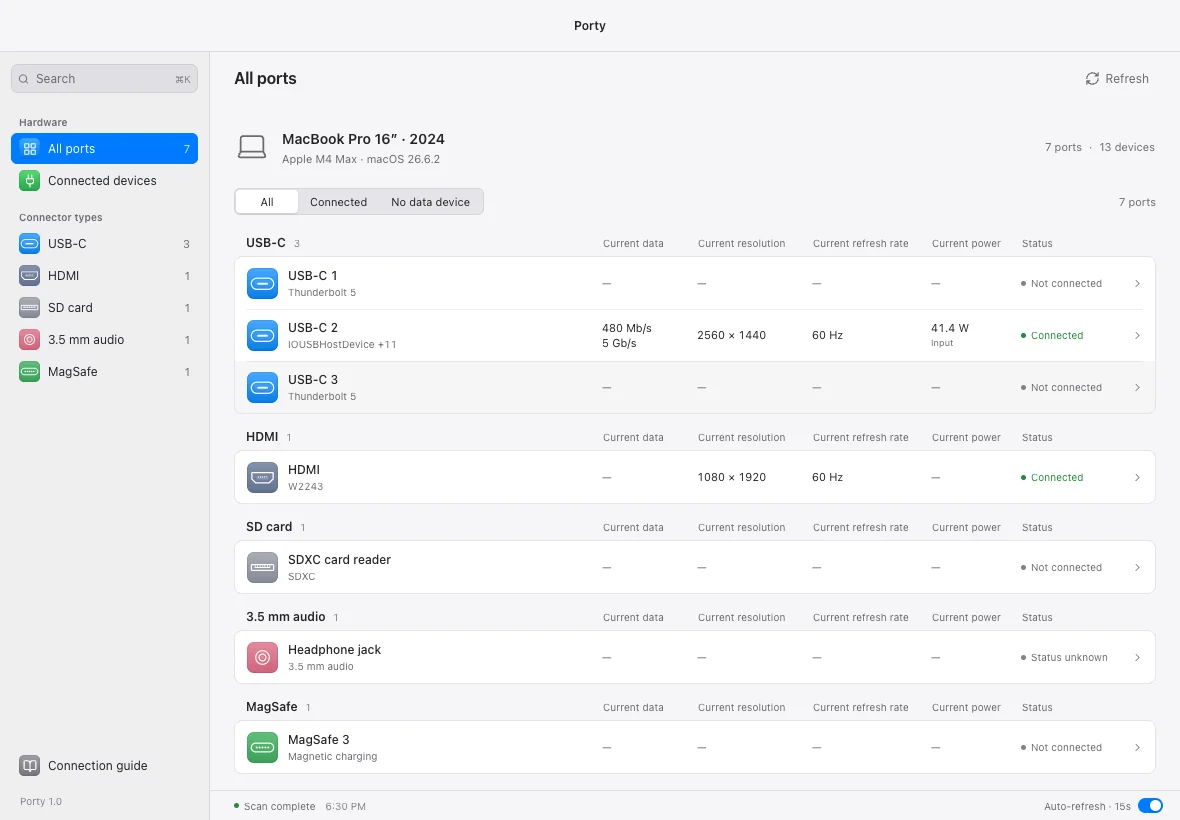
A port’s advertised capability, its current connection and the limits of an attached cable answer different questions. Mixing them together makes a confident-looking interface that can send someone looking for the wrong fault.
Porty separates current readings from manufacturer specifications and labels the evidence behind them. Missing information stays unreported. A USB link speed describes the negotiated connection; it isn’t a file-transfer benchmark. A negotiated power limit is also different from measured power draw.
System detected
What the computer reports now
Current links, connected devices and available display or power readings.
Manufacturer specification
What the hardware is designed to support
Published capabilities, kept separate from the current connection.
Unreported
What the available evidence can’t establish
A visible gap in the information. An unknown value is not automatically a fault.
05 / Designing for debugging
Make a change.
See what changed.
An intermittent connection is easy to miss in a static snapshot. The interface needs to help you compare what happened before and after a change: unplugging a hub, switching a cable, moving a device to another port.
Porty combines the current connection map with an event history. macOS USB and display notifications, alongside scan comparisons for other reported changes, help preserve that sequence. The history can be saved for later investigation.
- 01
Observe the setup
Locate the affected device and follow its reported upstream path.
- 02
Change one thing
Move one cable or device so the next change has a useful explanation.
- 03
Watch the difference
See which devices leave or return together and inspect their current readings.
- 04
Keep the evidence
Save the session history so an intermittent problem doesn’t become a memory test.
A group of disappearing devices points you towards a shared path. It still takes a controlled check to establish whether the cause is the cable, hub, power or something else.
06 / What I learned
Understanding the system
was part of designing it.
The most useful work happened between the hardware data and the screen: learning what each reading meant, deciding which records belonged together, and making the remaining uncertainty understandable.
That is the usability improvement I wanted from Porty: help someone form a better question, trace it to a connection, and observe the result of a change. The app is available in preview for macOS and Windows. Hardware coverage is still growing, and the interface needs to remain honest about what each setup can report.
Porty was inspired in part by Darryl Morley’s WhatCable and adapts its MIT-licensed macOS cable and power decoding. The hero graph is an illustrative example; the screenshots show the product interface.